In this post, I have written about connecting the wifi7 client in 3 links using Raspberry PI client.
I have used intel BE200 as a wireless client , AP that supports WiFi7.
Prerequisites:
- Raspberry PI5 with Ubuntu Version (Ubuntu 25.04)
- Intel BE200 Wireless card
- Raspberry PI M.2 E hat
- Manually compile wpa_supplicant with BE support (CONFIG_IEEE80211BE=y)
- WiFi7 Supported AP with MLO enabled
Once we install the RPI with Ubuntu Version 25.04, it comes with the kernel “6.14.0-1008-raspi“, automatically the Intel BE200 card will be detected once we type iw dev.
RPI looks like below , once we fix the Intel BE 200 along with M.2 Hat, we also need to connect external antennas.

Once we compile the wpa supplicant with BE support, we just need to connect to the SSID using WPA3 mode. Below are the commands used to connect to the SSID using wpa_cli.
Please note that , Intel BE200 6Ghz channels will be unlocked only when the firmware detects the country where the 6Ghz band is enabled. We can’t change the country code settings using the iw commands. Looks like 6 GHz channels get unblocked (only) when the environment is correctly identified. This is the case in my observation. As of now, not all the country have enabled 6Ghz band, but for future we see the latest firmware adding the 6ghz support for the countries that have opened 6ghz spectrum.
Start the wpa supplicant directly with the configuration file or we can use cli to enter the details.
Type wpa_cli on Ubuntu terminal and execute the below commands for WPA3 PSK SSID.
wpa_cli v2.11

Copyright (c) 2004-2024, Jouni Malinen <j@w1.fi> and contributors

This software may be distributed under the terms of the BSD license.

See README for more details.

Selected interface 'wlP1p1s0f0'

Interactive mode

> remove_n all

> add_n
0
<3>CTRL-EVENT-NETWORK-ADDED 0

> set_n 0 ssid "WPA3_MLO_SSID_NAME"
OK

> set_n 0 psk "WPA3_PSK_PASSWORD"
OK

> set_n 0 key_mgmt SAE
OK

> set_n 0 ieee80211w 2
OK

> enable_network 0
OK
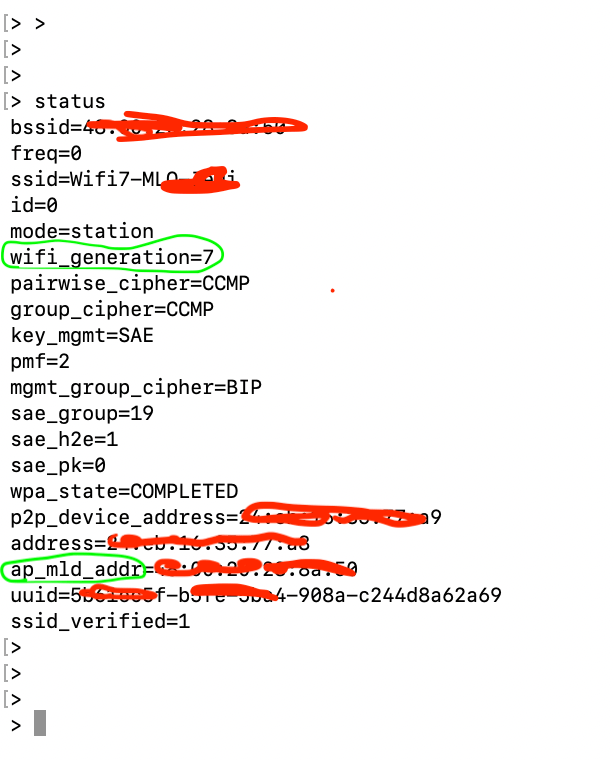
we should see successful connection established, once we type status in wpa_cli and also wee should see WiFi7 in the status.
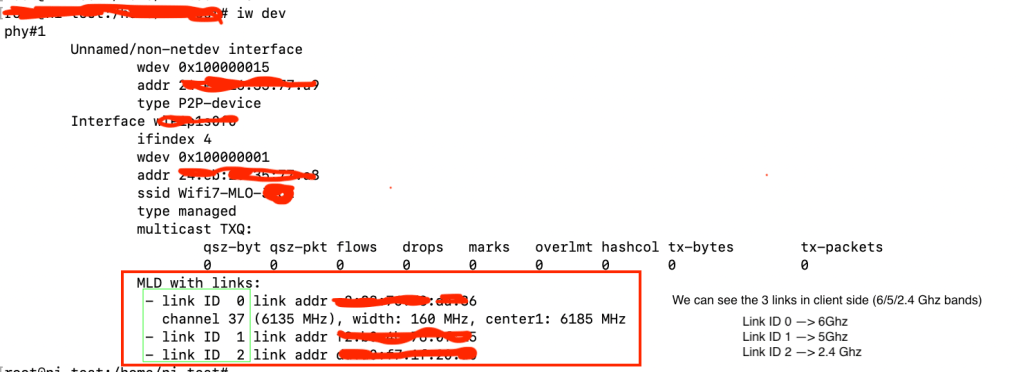
We should also see the below in the client side once we type “iw dev” , we should be able to see the 3 links [2.4/5/6 Ghz bands].
This is how we connect RPI5 to Wifi7 AP using Ubuntu 25.04.
 Praneeth's Blog